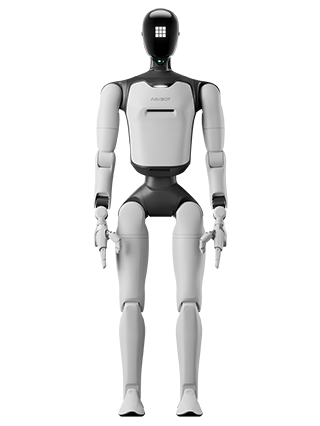
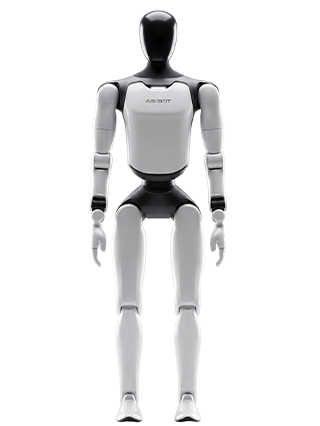
AGIBOT A3 Ultra User Manual

Release: 2026-10-23 15:35:01

Welcome

Thank you for choosing the AGIBOT A3 Ultra Robot.

This user manual helps you fully understand and quickly get started with the AGIBOT A3 Ultra Robot (hereinafter referred to as "the Robot"), and provides detailed information on operation and maintenance to ensure an optimal user experience. Should you have any problems during use, please call our service hotline or contact our official WeChat account. Our professional technical support team will be glad to assist you.

Read User Manual: https://www.agibot.com/filepage/290.html

1792742006425708.png 

Contact After-sales Service: https://www.agibot.com/filepage/292.html

1792742050970259.png 


1. Important Notice


1.1 Safety Precautions

1. Know the Product: Before using the Robot for the first time, please read the manual to fully understand its functions, operating procedures, and all safety instructions.

2. Environmental Requirements: Operate the robot only on flat, dry and stable surfaces. Do not use it in environments with extreme high or low temperatures, high humidity, steep slopes, sharp drops, fragile ground or strong vibration.

3. Regular Inspection and Maintenance: Conduct regular maintenance and status checks on the Robot, focusing on key components such as joints, sensors, and the power system, to ensure the equipment remains in good working condition and to prevent safety hazards caused by component aging or damage.

4. Know the Emergency Stop Operations: Before use, familiarize yourself with the emergency stop operation method to halt the robot promptly in case of emergencies. Once the emergency stop is activated, all robot joints will lose support and collapse. For this reason, strictly observe on-site safety regulations and keep the protective frame in place at all times after an emergency stop. Do not activate the emergency stop unless necessary.

5. Reserve Operating Space: Before operation, ensure sufficient surrounding space for the robot to move. Do not use it in overly narrow areas or spaces crowded with people and obstacles, to prevent collision and pinching risks.

6. Electrical Safety: Before power-on, inspect cables, plugs and sockets to confirm they are intact and free of abnormalities. If a short circuit, overheating or other faults are detected, cut off the power supply immediately.

7. Prohibit Improper Use: Use the robot only in compliant and proper application scenarios. Do not operate it for dangerous, illegal or unauthorized purposes.

8. Confirm the Parking Location: Before entering the operating area, personnel must ensure that the robot is parked on level ground. Do not approach the robot while it is on a slope.

9. Restart after Shutdown: After shutting down, wait at least 30 seconds before powering the robot back on.


1.2 Safety Guidelines

1. Pre-Operation Checks

• a. Before powering on the robot or initiating any movement, ensure no personnel, debris or obstacles remain in the working area, especially around robotic arms, joints and other moving parts, to prevent collisions and personal injury.

• b. Operators shall inspect the robot for normal status before startup and confirm the completion of system self-check.

2. Standardized Operation and Training Requirements

All operating personnel must receive operating training in advance. Operators shall be familiar with the robot’s specifications, standard operating procedures and exception handling protocols, to avoid safety risks arising from improper operation.

3. Maintain a Safe Distance

Keep a minimum 1 meter safe distance from the robot’s working area during operation to prevent collision hazards caused by sudden equipment movement. Do not stay within the robot’s predicted motion path, especially during high-speed operation.

4. Prohibition of Manual Intervention During Operation

Do not manually interfere with the robot while it is running. If adjustment, maintenance or manual handling is required, confirm the robot has come to a complete stop and is fully powered off before any operation.

5. Load and Component Usage Requirements

• a. Operate the robot within its rated load capacity. Do not apply loads exceeding its designed specification limits.

• b. When using end-effectors, grippers and other functional components, ensure full compatibility with the target workpiece. Mismatched components may cause extrusion, abnormal stress or permanent part damage.

6. Shutdown Procedures for Abnormal Conditions

In the event of abnormalities, malfunctions or unexpected faults, immediately activate emergency shutdown via the remote control to stop all robot motions without delay.

8. Remote Control Precautions

• a. If the robot is equipped with remote control functions, operate it only under stable and secure network conditions. Network interruptions, latency or external intrusion will impair control stability.

• b. Remote operators shall adopt real-time monitoring measures to continuously keep track of the robot’s running status and on-site environment, so as to ensure the safety of remote operation.


2. AGIBOT A3 Ultra Overview


2.1 Unpacking List

图片3.png 

No.

Component Name

Quantity

1

Robot Main Body(incl two battery packs)

1

2

Battery Charger

1

3

Magnetic Charging Connector

1

4

Remote Control

1

5

Lavalier Microphone

1

6

Quick Start Guide

1

7

Qualification Certificate

1

8

Safety Lanyard

2

9

Lifting Rings

2


2.2 Product Introduction

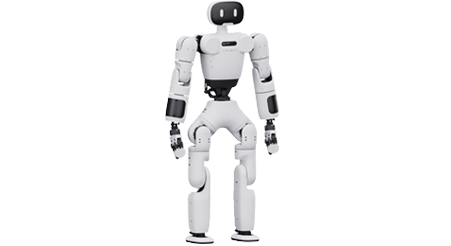
The AGIBOT A3 series products feature 31 to 71 degrees of freedom (varies by model and configuration), enabling flexible movement and high-precision posture control. The following details the specific configuration and feature highlights of the AGIBOT A3 Ultra.

• AGIBOT A3 Ultra: 2 degrees of freedom in the neck, 7 per arm, 3 in the waist, and 6 per leg. It is equipped with dexterous hands (standard 10-DOF dexterous hands, compatible with multiple dexterous hand models; the number of degrees of freedom varies by model).

• The perception system is equipped with front-view RGB stereo cameras, surround-view triple fisheye cameras, LiDAR, GPS RTK, UWB positioning, shoulder touch sensors, a chest RGB-D camera, and a hip RGB-D camera.

• The communication system is equipped with Wi-Fi, 4G/5G mobile network, and Bluetooth.

• The interaction system is equipped with omnidirectional microphones, speakers, a curved display, and omnidirectional indicator lights.

• The power system is equipped with a 1152Wh battery, providing a total battery life of 8 hours, including 4 hours of standing operation and over 4 hours of continuous walking. It supports direct charging, battery changing, with a charging time of ≤2 hours.

2.2.1 Component Names and Descriptions

图片4.png 

No.

Component

No.

Component

No.

Component

1

Head Display

9

Thigh

17

Waist Handle

2

Left and Right Speakers

10

Calf

18

Left and Right Fisheye Cameras

3

Interactive Binocular Camera

11

Dual Shoulder Touch Sensors

19

Rear-View Fisheye Camera

4

Switch

12

Dual Battery Compartments

20

LiDAR

5

Microphone

13

Maintenance Bay

21

Chest RGB-D Camera

6

Upper Arm

14

Waist

22

Hip RGB-D Camera

7

Forearm

15

Foot


8

Dexterous Hand

16

Charging Port


2.2.2 Robot Indicator Lights

The robot displays its current status through the head screen expressions, the chest light, and the ear lights. The chest light mainly indicates the robot’s operating, battery and fault status; the ear lights mainly indicate real-time interaction states such as listening and speaking.

Category

Status

Description

Light Effect

Chest Light – Daily Status


Resting

When the robot is lifted up and no other status is triggered

Light off

Standby

The robot is powered on and waiting for user operation

Solid white

Charging

The robot is charging and not yet fully charged

Breathing white

Working

The robot is performing tasks such as navigation, guiding, delivery, dancing, or combat

Solid white

Voice Interaction

Listening

The robot is receiving the user’s voice

Flowing white

Speaking

The robot is performing voice interaction tasks such as conversation, guiding, or skill expression.

Note: non-voice-interaction scenarios such as dancing, system announcements, and audio announcements triggered from the client do not trigger this light effect


Flowing white

Reminders and Faults

Find Robot

The user is locating the robot via the client

Red strobe (300 ms)

Critical Fault


A critical fault has occurred. Stop using the robot immediately and inspect it according to the system prompts

Solid red

Device Locked

The robot has entered the locked state

Emergency Stop

Manual intervention for an out-of-control or dangerous situation of the robot

Fault

A fault has occurred and must be handled according to the system prompts

Does not affect the light effect


Warning

A condition requiring attention has occurred; for example, when one battery is removed, the robot displays the warning light effect

Low Battery

When the combined level of "both batteries" drops to 30% or below, recharge or replace the batteries promptly

Solid white

Extremely Low Battery

When the combined level of "both batteries" drops to 10% or below, recharge or replace the batteries promptly

Solid red


2.2.3 Battery Indicator

Note: When using battery power, closely monitor the battery level. Low or nearly depleted batteries may cause the robot to topple suddenly due to insufficient output power. Recharge or replace the battery immediately when only one indicator remains, to maintain stable operation and avoid personal injury caused by the robot falling.

2.2.3.1 Location of Battery Indicator Lights

图片5.png 

2.2.3.2 Indicator Status Description (Working)

Battery Light Status (Working)

Battery Level

Status Description

All LEDs off

0%

No power

LED1 on, LEDs 2-4 off

1% ≤ Battery Level < 25%

Critical Low Power (Recharge Immediately)

LEDs 1-2 on, LEDs 3-4 off

25% ≤ Battery Level < 50%

Low Power

LEDs 1-3 on, LED4 off

50% ≤ Battery Level < 75%

Sufficient power

LEDs 1-4 on

75% ≤ Battery Level < 100%

Full power

2.2.3.3 Indicator Status Description (Charging)

Battery Light Status (Charging)

Battery Level

Status Description

LED1 breathing, LEDs 2-4 off

Battery Level < 25%

Critical Low Power

LED1 on, LED2 breathing, LEDs 3-4 off

25% ≤ Battery Level < 50%

Low Power: Do not disconnect

LEDs 1-2 on, LED3 breathing, LED4 off

50% ≤ Battery Level < 75%

Medium Power: Operable; charging to full recommended

LEDs 1-3 on, LED4 breathing

75% ≤ Battery Level < 100%

Sufficient Power: Operable

LEDs 1-4 on

Battery Level = 100%

Charging Complete: Power can be disconnected

2.2.4 User Debugging Interfaces

No.

Hardware Expansion Interface

Interface

Description

1

Maintenance bay: for debugging and secondary development (waist)

USB Type-A 2.0

Supports ADU/MDU serial port reading and debugging

2

Maintenance bay: for debugging and secondary development (waist)

Ethernet

Supports ADU debugging and secondary development

3

Maintenance bay: power interface (waist)

USB Type-C

5 V/3 A output; can charge external devices such as the remote controller

4

Maintenance bay: for debugging and secondary development (head)

USB Type-C

Supports debugging and secondary development of the head HDU (RK3588s); supports connecting a microphone receiver


2.3 Robot Joint Motion Range

图片6.png 

Joint Name

Joint Limit

Joint Name

Joint Limit

Arm


J1(Shoulder pitch): -165°~165°

Waist

J1(Waist roll): ±20°

J2(Shoulder roll): -5°~150°

J2(Waist yaw): ±150°

J3(Shoulder yaw): ±160°

J3(Waist pitch): -28°~24°

J4(Elbow pitch):-55°~100°

Leg


J1(Hip pitch): -144°~168°

J5(Wrist roll): ±160°

J2(Hip roll): -30~85°

J6(Wrist pitch): ±93°

J3(Hip yaw): ±156°

J7(Wrist yaw): ±93°

J4(Knee pitch): -7°~145°

Head

Tilt joint (Head pitch): 15° (down), 25° (up)

J5(Ankle pitch): -52°~30°

Rotation joint (Head yaw): ±60°

J6(Ankle roll): ±20°

Note: Joint limits are calculated based on structural design parameters. Individual differences may exist between devices, and these data are for reference only.


2.4 Robot Sensor Field of View

Robot Model

Perception Configuration

Capability

AGIBOT A3 Ultra

Interactive Binocular Camera

Supports visual recognition and response in human-robot interaction scenarios


Left and Right Fisheye Cameras

Surround-view environment perception, object recognition and obstacle avoidance


Rear-View Fisheye Camera


Chest RGB-D Camera

Depth and image perception of the working area


Hip RGB-D Camera

Depth and image perception of the ground area

图片7.png 


2.5 Robot Specifications

Robot Model

AGIBOT A3 Ultra


Main Body

Height

1.74 m


Dimensions

174 cm (H) x 52 cm (W) x 30 cm (L)


Weight

60 KG


Active Degrees of Freedom

51–71


Neck Degrees of Freedom

2


Single Arm Degrees of Freedom

7


Waist Degrees of Freedom

3


Single Leg Degrees of Freedom

6


Dexterous Hand Degrees of Freedom

10 (optional, up to 20 DOF)

Perception System

3D LiDAR

Equipped


Embodied Operation RGB-D Camera

Equipped


Terrain Perception RGB-D Camera

Equipped


Interactive RGB Camera

RGB Binocular Camera


Panoramic RGB Camera

Equipped


GPS

Equipped


GPS RTK

Equipped


UWB Positioning

Equipped


Shoulder Touch Sensors

Equipped

Communication

Communication Methods

WiFi, 4G/5G Network, Bluetooth

Interaction

Microphone

Omnidirectional Microphone; Front and Rear 8-Microphone Array


Speaker

Equipped


Face Screen

Curved Screen


Indicator Lights

Omnidirectional Indicator Lights

Performance

Knee Joint Peak Torque

320 N·m


Movement Speed

Max Daily Walking Speed: 1.8 m/s; Normal Daily Walking Speed: < 1.2 m/s; Maximum Laboratory Speed: 2.5 m/s; Max Running Speed: 5 m/s


Single Arm Payload

Rated 1 kg; extreme 5 kg

Operating Environment

Operating Temperature

-10°C to +45°C

Power and Energy

Battery Capacity

1152 W·h


Battery Life

Total 8 h. * Actual battery life depends on usage and is affected by walking speed and load; standing / walking ratio = 1:1


Charging Methods

Supports direct charging, battery swapping, and autonomous charging


Charging Time

≤2 h


Charging Input Voltage

110-220 V

Computing Power

Basic Computing Board

RK3588 * 2


Advanced Computing Board

NVIDIA Thor

Others

Handheld Wireless Terminal

Equipped


Smart OTA Update

Equipped


Further Development

Supported


2.6 Radio Frequency Specifications

Wi-Fi and Bluetooth

• 2.4 GHz Wi-Fi: 20 dBm (EIRP)

• Bluetooth: 20 dBm (EIRP)

• 5 GHz Wi-Fi:

○ 5150–5250 MHz: 23 dBm (EIRP)

○ 5725–5850 MHz: 14 dBm (EIRP)

Wi-Fi operation in the 5150–5250 MHz frequency range is restricted to indoor use in all EU/EFTA member states and Turkey.

UWB

• 7987.2 MHz: 0 dBm (EIRP)

Cellular Bands

• LTE Band 1: Uplink: 1920–1980 MHz; Downlink: 2110–2170 MHz

• LTE Band 3: Uplink: 1710–1785 MHz; Downlink: 1805–1880 MHz

• LTE Band 7: Uplink: 2500–2570 MHz; Downlink: 2620–2690 MHz

• LTE Band 8: Uplink: 880–915 MHz; Downlink: 925–960 MHz

• LTE Band 20: Uplink: 832–862 MHz; Downlink: 791–821 MHz

• LTE Band 28: Uplink: 703–748 MHz; Downlink: 758–803 MHz

• LTE Band 32: Downlink only: 1452–1496 MHz

• LTE Band 34: Uplink and downlink: 2010–2025 MHz

• LTE Band 38: Uplink and downlink: 2570–2620 MHz

• LTE Band 40: Uplink and downlink: 2300–2400 MHz

• LTE Band 41: Uplink and downlink: 2496–2690 MHz

• LTE Band 42: Uplink and downlink: 3400–3600 MHz

• LTE Band 43: Uplink and downlink: 3600–3800 MHz

• LTE Band 46: Downlink only: 5150–5925 MHz

5G NR Bands

• NR n1: Uplink: 1920–1980 MHz; Downlink: 2110–2170 MHz

• NR n3: Uplink: 1710–1785 MHz; Downlink: 1805–1880 MHz

• NR n7: Uplink: 2500–2570 MHz; Downlink: 2620–2690 MHz

• NR n8: Uplink: 880–915 MHz; Downlink: 925–960 MHz

• NR n20: Uplink: 832–862 MHz; Downlink: 791–821 MHz

• NR n28: Uplink: 703–748 MHz; Downlink: 758–803 MHz

• NR n38: Uplink and downlink: 2570–2620 MHz

• NR n40: Uplink and downlink: 2300–2400 MHz

• NR n41: Uplink and downlink: 2496–2690 MHz

• NR n75: Downlink only: 1432–1517 MHz

• NR n76: Downlink only: 1427–1432 MHz

• NR n77: Uplink and downlink: 3300–4200 MHz

• NR n78: Uplink and downlink: 3300–3800 MHz

Maximum Transmit Power

• LTE bands: 23 dBm (+2.0/-2.0 dB)

• 5G NR Power Class 3, bands n1/n3/n7/n8/n20/n28/n38/n40: 23 dBm (+2.0/-2.0 dB)

• 5G NR Power Class 2, bands n41/n77/n78: 26 dBm (+3/-4 dB)


3.Introduction to Remote Control


3.1 Remote Control Exterior Design

图片8.png

3.2 Remote Control Button Layout

图片9.png 

No.

Name

No.

Name

1

Left Trigger (L2)

8

Left Joystick (L3)

2

Left Shoulder Button (L1)

9

Back

3

Power Button

10

Home

4

Volume

11

A/B/X/Y

5

Right Trigger (R2)

12

Right Joystick (R3)

6

Right Shoulder Button (R1)

13

Start

7

D-Pad

14

Select


3.3 Remote Control Charging Instructions

Charging Method: The remote control supports charging via a USB-C cable. Do not use a high-power charger, as this may degrade the remote control’s performance.

Battery Life: The remote control typically lasts about 4 hours on a single charge. A full charge takes 3-4 hours. Actual battery life is affected by various factors, and the specific duration depends on actual usage.

Precautions:

1. When using the remote control to operate the Robot, closely monitor the Robot’s battery level. Low battery may prevent switching motion control modes, which could lead to the Robot falling unexpectedly.

9. Use a charger that meets safety standards to charge the remote control. It is recommended to use a 5V/1A or 5V/2A charger to prevent damage from overcharging.


4. Usage Instructions


4.1 AimMaster

4.1.1 General Guide (How to Connect the Robot)

Step 1: Language Selection (Required for First Connection)

图片10.png 

Step 2: Privacy & User Agreement (Required for the first connection)

图片11.png 

Step 3: Lock screen password setting (required for the first connection)

图片12.png 

Step 4:Select the robot type

图片13.png 

Step 5:Turn on the power

图片14.png 

Step 6: Network connection (required for the first connection)

图片15.png 

Step 7: Select the robot's language and location (required for the first connection)

图片16.png 

Step 8: Robot authorization password (required for the first connection)

图片17.png 

Step 9: Select the robot's posture

图片18.png 

Step 10: Enter the home page

For detailed functionality, refer to the App User Manual https://agirobot.feishu.cn/wiki/HQTdwidb5iPBplkk9iDcpLEPnEe

1792744685975273.png 


4.2 Startup Procedure

4.2.1 Packaging Box Startup

Step 1: Activate the battery

Note: This activation step is only required when opening the package for the first time or when the battery pack is in storage and transportation mode.

Stand the packaging box upright, open the bottom window, then short press and long press (1s) the power button of each of the two battery packs, until all the indicator lights of the battery packs light up in sequence, indicating successful activation. Then close the bottom window.

Step 1-1: Stand up the packing box and open the bottom window

图片20.png 

Step 1-2: Activate two battery packs


图片21.png 

Step 2: Open the package

Lay the packing box flat, lock the wheels at the bottom of the packing box after confirming that there are no obstacles in front, then open the top cover of the packing box and remove the middle layer and hip-cover foam, ensuring that there are no items above the robot.

Step 2-1: Place the packing box flat

微信图片_20261023141129_907_5.jpg

Step 2-2: Lock the wheels at the bottom of the packing box

微信图片_20261023141130_908_5.jpg 


Step 2-3: Unlock and open the top cover of the packaging box

微信图片_20261023141131_909_5.jpg 

Step 2-4: Remove the middle layer and hip-cover foam

微信图片_20261023141131_910_5.jpg 

Step 3: Power on and start

Press and hold the robot’s power button to turn on the robot. After the robot is powered on, the head screen and the indicator light on the chest will light up.

图片26.png 

Step 4: Connect to AimMaster

Complete the connection between AimMaster and the robot according to the steps in Section 4.1, and select the [Packaging Box Startup] card on the [Please Select Robot Posture] page.

图片27.png 

Step 5: Stand up inside the box

After confirming the environment step by step in AimMaster, control the robot to stand up from the box with one click. The robot will then enter the motion state and maintain a stable standing posture.

Note: Observe the following:

• Ensure no obstacles are present in front of the packaging box.

• Lock all casters of the box securely.

• Make sure the robot’s hip position is above the red line; adjust it manually above the red line if not.

• Do not touch the robot during the stand-up process.

• After the robot stands up, move the packaging box at least 0.5 meters away before operation.


Operation Steps

Operation Interface

Ensure the packaging box is placed steadily with no obstacles ahead

图片28.png 

Confirm the box casters are locked

图片29.png 

Confirm the middle layer and hip-cover foam is removed


图片30.png 

Confirm that the robot's position is correct

图片31.png 

Confirm initiating the robot stand-up

图片32.png 

Robot standing up (automatic)

图片33.png 

The robot successfully stands up, moves the packing box away, and ready to use

图片34.png 

4.2.2 Power On in Supine Position

Step 1: Power on and start

Press and hold the robot’s power button to turn on the robot. After the robot is powered on, the head screen and the indicator light on the chest will light up.

Note: If the battery pack is in storage and transportation mode, it is necessary to activate the battery pack before powering on. The operation method is to short press and then long press (1s) the power button on the battery pack, until all the battery pack indicator lights light up sequentially.

图片35.png 

Step 2: Lay the robot flat

Lay down the robot on a flat surface as shown in the following illustration, ensuring that the entire body of the robot faces upward, its limbs are extended, and its arms are naturally placed on both sides of the body.

图片36.png 

Step 3: Connect to AimMaster

Complete the connection between AimMaster and the robot according to the steps in Section 4.1, and select the homepage entering option on the robot status page.

图片37.png 

Step 4: Confirm environmental safety

Before triggering the lying-down-to-standing-up action, it is necessary to ensure that there are no foreign objects within a 1-meter radius around the robot to reserve sufficient safety space for the action execution.

Step 5: Stand up from lying flat

Under the Posture switch on the home page of AimMaster, choose "Stand" to enable the robot to stand up from a lying position. At this time, the robot enters a motion state and stands stably.

图片38.png 

4.2.3 Power On in Prone Position

Step 1: Power on and start

Press and hold the robot’s power button to turn on the robot. After the robot is powered on, the head screen and the indicator light on the chest will light up.

Note: If the battery pack is in storage and transportation mode, it is necessary to activate the battery pack before powering on. The operation method is to short press and then long press (1s) the power button on the battery pack, until all the battery pack indicator lights light up sequentially.

图片39.png 

Step 2: Lay the robot face-down

Lay the robot face-down on a flat surface as shown in the illustration, ensuring that the entire body of the robot faces downward, its limbs are extended, and its arms are naturally positioned on both sides of the body.

图片40.png 

Step 3: Connect to AimMaster

Complete the connection between AimMaster and the robot according to the steps in Section 4.1, and select the homepage entering option on the robot status page.

图片41.png 

Step 4: Confirm environmental safety

Before triggering the prone-to-standing action, it is necessary to ensure that there are no foreign objects within a 1-meter radius around the robot to reserve sufficient safety space for the action execution.

Step 5: Stand up from a prone position

Under the Posture switch on the home page of AimMaster, choose "Stand" to enable the robot to stand up from a lying position. At this time, the robot enters a motion state and stands stably.

图片42.png 


4.3 Shutdown Procedure

4.3.1 Shutdown and Packing

Note: Observe the following:

• When moving the packing box to align with the robot, be sure not to hit the robot.

• Before the robot enters the packaging, confirm that all casters have been locked.

• Do not touch the robot during the return-to-box process.

• After shutdown, wait until the chest indicator light goes off (about 20 s).

• In case of a fault, press and hold the power button for 30 s to force shutdown.

Step 1: The robot is in motion and standing stably

图片43.png 

Step 2: Initiate the self-service return process

On the-page of AimMaster, choose, and start the return-to-box process after ensuring the surface is level.

图片44.png 


Step 3: Move and position the packaging box

Pull out the positioning block from inside the packing box, turn it over to the outer wall of the packing box and press it firmly against the wall; move the packing box to the back of the robot so that the positioning block gently touches both legs and centers itself for positioning.

Step 3-1: Flip out the positioning block

图片45.png 

Step3-2: Align the robot


图片46.png 

Step 4: Lock the packing box

Lock all the casters of the packing box, and confirm that the inside of the packing box has been cleaned up.

图片47.png 

Step 5: Robot returns to the box

After confirming  environmental safety, confirm to start entering the packaging box.

Step 6: Shut down and pack

After the robot is placed inside the packaging box, briefly press the power button on the chest, and follow the voice prompts to turn it off; then insert the positioning block, hip-cover foam, and middle layer foam back into their original positions to secure and protect the robot; finally, close the packaging box and lock it.

4.3.2 Shutdown with Supine Position

Caution: Ensure a 1-meter radius safety space around the robot to avoid collisions.

Step 1: The robot is in motion mode, use the  remote control to connect to the robot

图片48.png 

图片49.png 

Step 2: Remote control the robot to lie flat

图片50.png 

Step 3: Short press the power button on the chest, and follow the voice prompts to turn off the device

图片51.png 


4.4 Entering and Exiting Battery Pack Storage Mode

Note: Before transportation or long-term storage, it is recommended to enable the battery pack storage mode.If the robot is powered off without entering Storage Mode, the system will still consume approximately 7W of standby power, and a fully charged battery pack may be completely depleted in about 7 days.

4.4.1 Enter Storage Mode

Step 1: Press the battery pack power button briefly 5 times continuously. After the red indicator starts flashing, press and hold the power button.

Step 2: Continue holding the button until the green indicator starts flashing, then release the button. The battery pack has now entered Storage Mode.

Storage Mode Activation Check:
Briefly press the battery pack power button once. If the battery indicator lights up only after a few seconds, Storage Mode has been successfully activated.

4.4.2 Exit Storage Mode

Step 1: Briefly press the battery pack power button once to make all green indicators light up, and perform the Storage Mode check.

Step 2: Immediately press and hold the power button again. When the indicator light sequence completes, the battery pack has been successfully activated and has exited Storage Mode.


4.5 Charging and Battery Changing

4.5.1 Charging Mode

1. Charging the robot with battery installed

When both batteries are in place, the magnetic charging head of the charger can be connected to the charging port of the robot. After the power is turned on, the magnetic charging head of the charger lights up green, indicating successful charging. The schematic diagram is as follows:

图片52.png 

2. Charging the battery solely

Remove the battery and separate the magnetic adapter section of the charger to directly charge the battery. The schematic diagram is as follows:

图片53.png 

4.5.2 Battery Changing Mode

Note: If the battery pack is in storage and transportation mode, it is necessary to activate the battery pack before powering on. The operation method is to short press and then long press (1s) the battery pack power button until all the battery pack indicator lights light up sequentially.

Step 1: Remove an individual battery

Step 2: Insert the "new" battery

Step 3: Repeat the above actions and replace the second battery

* An individual battery can be removed in both the shutdown state and the powered-on standing state (when only a single battery is left in place, the robot is restricted from moving).

Note: If the battery pack is in storage and transportation mode, it is necessary to activate the battery pack before powering on. The operation method is to short press and then long press (1s) the battery pack power button until all the battery pack indicator lights light up sequentially.

4.5.3 Autonomous Charging

4.5.3.1 Functional Overview

• Autonomous charging is a prerequisite for the robot to achieve 7 x 24-hour autonomous operation.

• When the robot needs recharging, it autonomously navigates to the charging point and completes actions such as identifying and plugging in the charging gun to start charging; after charging is complete, it autonomously performs the wrap-up actions — unplugging, holstering the gun, and retracting the arm — and ends charging on its own.

图片54.png 

图片55.png 

4.5.3.2 Preparation

Prerequisites: Complete mapping first, and make sure the robot is in motion mode and has been localized on the current map. This section covers the autonomous charging function only; for mapping, navigation, and relocalization, refer to the corresponding user manuals.

4.5.3.2.1 Deploying the Charging Point

1. Fix the charging gun base to the edge of a light-colored table with the fixing clip (deployment on dark-colored tables is not supported in this release); table height: 75–95 cm. Connect the other end to a power supply.

2. Attach the charging point marker board in the orientation shown: align its bottom edge with the table edge and press its right edge tightly against the charging gun base; peel off the protective film on the back and stick it to the desktop.

3. Remote-control the robot to the table where the charging gun is fixed.

图片56.png 

Secure the charging connector to the edge of the table

图片57.png 

Attach the charging-point marker

图片58.png 

Use the remote controller to move the robot next to the table.

4. Open the AimMaster map page and select Edit Map.

5. Select Point → Record → Charging Point in turn. The live feed from the robot's chest camera appears in the upper-left corner, and the dashed box in the lower-right corner indicates the best deployment position for the charging gun.

6. Fine-tune the robot's position with the controller or by dragging until the charging gun is inside the dashed box; the dashed box turns green once the charging gun is detected.

7. Tap Charging Point → Mark, name the charging point, and tap Save to finish creating it.

○ Note: The charging point can be given a custom name; this does not affect how the function is triggered.

8. Only one charging point can be created per map. To change the charging point location, delete the current charging point first and then create a new one.

4.5.3.2.2 Enabling Autonomous Charging

1. Autonomous charging can be enabled on the Settings → Map page.

2. Two trigger methods are available: voice trigger and low-battery trigger.

○ With voice trigger enabled, autonomous charging can be triggered by the voice command.

○ For the low-battery trigger, you can choose a threshold of 20%, 30%, 40%, or 50%; autonomous charging is triggered when the battery level falls below the selected threshold.

图片59.png 

4.5.3.3 Autonomous Charging

4.5.3.3.1 Starting Autonomous Charging

Preconditions for normal triggering: The robot is not executing any task other than Lively Standby; a charging point exists on the current map; the robot's localization is normal and the robot is in a movable state.


Trigger Method

User Operation

Voice trigger

Say "Luka Luka, go charge" or "Luka Luka, go to the charging point"

Automatic low-battery trigger

Triggered automatically when the battery level falls below the configured threshold

4.5.3.3.2 Ending Autonomous Charging

Exit Method

User Operation

Voice exit

Say "Luka Luka, end charging" or "Luka Luka, stop charging"

Manual exit from the client

Tap End Charging Task in the client

Full-battery exit

No operation needed; triggered automatically when the battery level exceeds 95%

4.5.3.3.3 Interrupting Autonomous Charging

Condition for ending autonomous charging: Both batteries are correctly installed and the battery level is ≥ 15%. Otherwise, the robot cannot exit charging autonomously.


Phase

Can Be Interrupted

How to Interrupt

Navigation

Yes

Voice command; terminate the task in the client

Plugging in the gun

No

Not supported

Charging

Yes

Voice command; terminate the task in the client

Unplugging the gun

No

Not supported

4.5.3.4 Troubleshooting Quick Reference

Symptom

Possible Cause

Solution

Autonomous charging cannot be triggered

Trigger method not enabled; no charging point set (or wrong charging point name); localization abnormal; robot not movable; or another task in progress

Check the settings, map localization, and robot status; trigger again after other tasks finish

Cannot reach the charging point

Path blocked by people, objects, or temporary obstacles

Clear the path, exit the current task in the client, and trigger autonomous charging again

Charging gun not recognized

Charging gun in the wrong position, outside the dashed box, occluded, or abnormal lighting

Adjust the charging gun position; make sure it is unobstructed and lighting is normal

Plugging, unplugging, or holstering the gun fails

Charging gun position offset; QR code position offset; arm path blocked; cable under tension

Do not forcibly pull the arm or cables; wait until the robot's arms return to its sides, then manually help the robot plug in, unplug, or holster the gun

4.5.3.5 Precautions

Precautions

1. Before triggering autonomous charging, make sure both batteries are correctly installed and the battery level is at least 5%. Otherwise, insufficient power may prevent the robot from completing the charging process or cause it to fall.

2. If the robot is in an abnormal state, emergency-stop state, or abnormal posture, restore the robot to a normal state before triggering autonomous charging.

3. Do not move the deployed charging table, charging gun, or charging base at will. If their positions change, check and update the charging point again.

4. During autonomous charging, do not cover the QR code on the table, as this affects recognition and plug/unplug success rate.

5. During autonomous charging, do not cover the robot's cameras, the charging gun, or the charging base, as this affects recognition and plug/unplug success rate.

6. Do not reach in while the robot is plugging in / unplugging the gun. If the operation fails, wait until the robot's arms return to its sides before attempting to recover.

7. If the robot fails to plug in the gun autonomously, manual assistance is required. After manually assisting the plug-in, the robot cannot exit this charging task autonomously.

8. After each charging task, make sure the charging gun is correctly returned to the base. If the robot fails to holster it, return it manually; otherwise the next autonomous charging task cannot start.

9. The entire autonomous charging process cannot be interrupted by other tasks. Do not launch other tasks while autonomous charging is running.


4.6 Emergency Stop Function

The emergency stop function is used for the emergency stop of the robot in case of sudden situations, preventing further damage to the robot or the surrounding environment, and can be triggered in the "Soft Emergency Stop" mode.

After the robot enters the emergency stop state, its limbs will lose power and fall to the ground, with a certain risk of damaging the machine. Please ensure that users use the emergency stop function with extreme caution.

4.6.1 Triggering the Soft Emergency Stop

1. Steps to trigger the emergency stop state

Method 1: Triggered via AimMaster

Operation Steps

Operation Interface

Press the floating ball to enter the emergency stop page

图片60.png 

Press and hold the [Emergency Stop] button, then slide it to the right until it reaches the end to trigger a soft emergency stop

图片61.png 

Enter the soft emergency stop state

图片62.png 

Method 2: Triggered by remote control buttons (applicable to remote controls)

When the remote control is connected to the robot, hold the four buttons L1+L2+R1+R2 at the same time for more than 0.5 seconds to trigger the soft emergency stop state.

图片63.png 

2. Operable items in the soft emergency stop state

After the robot enters the soft emergency stop state, only limited operations such as viewing the function list and alarm information, and reporting problems, can be performed on the floating ball page.

Operation Steps

Operation Interface

Tap the floating ball

图片64.png 

Limited operations such as viewing the function list and alarm information, and reporting problems, can be performed

图片65.png 

3. Steps to exit the soft emergency stop state

Restart the robot to exit the soft emergency stop state.

图片66.png 

4.6.2 Emergency Stop Settings

Turn on/off the soft emergency stop function: On the [Settings] - [Movement] page of AimMaster, you can turn the software emergency stop function on and off.

图片67.png 


4.7.1 Remove the Silicone Hand

Step 1: Power off the robot and remove all batteries and charging plugs (this step must not be skipped; otherwise there is a safety risk).

Step 2: Remove the silicone strip above the dummy hand to expose the screws on the dummy hand.

before removal :

图片68.png 

after removal:

图片69.png 

Step 3: Remove the four screws securing the dummy hand (two at the front, two at the rear).

图片70.png 

The dummy hand can then be removed

图片71.png 

Step 4: Remove the terminal resistor on the wrist harness connector (keep the terminal resistor safe; it must be reinstalled when switching back to the silicone dummy hand).

图片72.png 

图片73.png 

4.7.2 Install the Dexterous Hand

Step 1: Align the wrist harness connector and insert it into the socket inside the dexterous hand (the connector has a fool-proof design; align it correctly before pressing it in — never force it).

图片74.png 

Step 2: Align the dexterous hand with the forearm and join them together; install the four screws (front and rear), then put the original silicone strip back in place.

图片75.png 


4.8 Replace the Silicone Hand

4.8.1 Remove Silicone Hands (a screwdriver is required; the screwdriver is provided in the accessory kit)

If a dexterous hand is being removed, power off the robot and remove all batteries and charging plugs first.

图片76.png 

4.8.2 Install Silicone Hands

Step 1: Check that the terminal resistor is properly installed

图片77.png 

Step 2: Align the silicone hand with the forearm and join them together

图片78.png 

Step 3:Install a total of four screws, front and rear

图片79.png 

Step 4: Place the silicone strip according to the position to cover the four screws

图片80.png 


4.9 Lifting Ring Installation

• Step 1: Pull out the rubber plugs on both shoulders of the robot to expose the mounting slot

图片82.png 

• Step 2: Hold the ring end and align the buckle end with the slot and press it firmly

 图片83.png

• Step 3: Rotate the lifting ring 90° and leave it there

  图片84.png


5. Function Description


5.1 Full-Body Dance

In the Talent screen of the skill operation navigation bar, select the corresponding dance content and swipe to play.

Step 1: Tap the top tab bar and select [Skills]

图片85.png 

Step 2: Select the desired dance, and swipe to execute

Note: Different dances must be confirmed and executed according to their respective pop-up instructions. Follow the prompts to ensure safety.

图片86.png 


5.2 Body Actions

5.2.1 Upper-Limb Actions

On the client home page, tap Skills > Resource Management, then select an action to play.

图片87.png

5.2.2 Upper-Limb Compliant Motion Playback (Passive Safety)

When this switch is turned on, the robot's arms become compliant, which reduces collision force.

5.2.3 Upper-Limb Motion Perception-Based Obstacle Stop (Active Safety)

When this switch is turned on, if you stand within the range of the robot's motion, the arm will pause for your safety (staying within 20 cm of the robot may affect the obstacle-stop performance).

图片88.png 

5.2.4 VR Motion Recording Supported on the Client

After you complete teleoperation calibration and take over the robot, press the [Action Recording] button to start recording.

图片89.png 


5.3 Navigation and Obstacle Avoidance

The switch is on by default. Once you turn it off, the robot will no longer avoid obstacles, posing a collision risk — please use this option with caution.

图片90.png


5.4 Lively Standby

The [Lively Standby] switch is off by default. It can be enabled under [Settings] > [Upper-Body Actions] > [Lively Standby] in AimMaster.


5.5 Robot Interaction

1. Two voice interaction inputs are available: [Built-in Mic] and [External Mic], which can be switched in the voice settings on the client.

2. Voice control of motions, dances, walking, and volume is supported, for example "Please shake hands", "Give me a dance", "Walk forward", "Set the volume to half", and "Set the volume to 30".

3. Stranger-recognition greeting is supported. A custom greeting can be set under [LinkSoul Platform] - [Welcome Settings] - [Stranger Greeting].

4. Lively greeting based on a multimodal large model is supported. It can be enabled under [LinkSoul Platform] - [Agent Center] - tap [Welcome Settings] - enable Lively Greeting.

5. Custom greeting is supported. Under [LinkSoul Platform] - [Edit Agent] - [User Information], you can set a dedicated welcome greeting for different users.

6. A newly added mute / interaction-disabled expression layer design (top-left corner of the screen), plus two new immersive expressions: entering the out-of-body avatar and the out-of-body avatar's ultimate move.

7. Multilingual interaction is supported, covering 16 languages including Chinese, English, German, French, Spanish, Japanese, Korean, Portuguese, Italian, Arabic, Thai, Russian, Malay, Vietnamese, Indonesian, Kazakh, and Turkish. Except for Chinese and English, the recognition rate of the other languages is approximately 65%–85%.

8. Speaker recognition is supported. Based on sound-source localization and visual information, the robot achieves "look at whoever is speaking" — turning its head / waist / whole body toward the user — and "knows who is speaking": for users with face ID, A3 Ultra can politely address them by name during wake-up responses and LLM chats. In complex environments with medium-to-high noise and multiple people, occasional positioning errors may occur; the [Interaction Full-Body Follow] switch under Client → [Voice] can be turned off.

9. Additional features will be added in subsequent OTA updates. For details, refer to the release notes of each version.


5.6 Spatial Tasks

5.6.1 Mapping and Point Marking

1. Open the client and enter the Map module.

图片91.png 

2. Tap Create Map and complete mapping of the exhibition area.

图片92.png 

3. Enter Edit → Points and mark each explanation point on the map.

图片93.png 

图片94.png 

4. After editing, upload the map to the cloud.


5.6.2 LinkSoul Operations: Creating and Deploying a Task

Creating a task

1. Log in to the LinkSoul platform

Asia: https://linksoul-sg.agibot.com/

EU: https://linksoul-eu.agibot.com/

America: https://linksoul-us-east.agibot.com/

2. Enter the Resource Center.图片95.png

3. Tap Task Management.

4. Tap New Spatial Task and fill in the task name and other basic information.

5. Select the uploaded map from the map list.

6. Tap Confirm to finish creating the spatial task.

Editing a task

1. Tap the newly created task to enter the task editing page.

2. Add points: Select "Add Point" and add the points to be explained. When two or more points are added, you can set the robot to explain while walking between two points.

3. Trigger and run configuration: Set the execution mode to single execution or loop execution (loop execution supports an effective time window); trigger rules can be voice commands or perception commands (shoulder tap).

4. Point configuration: Set the expression, motion, and explanation content for each point; the truncation mode is customizable and defaults to "truncate at the end of the broadcast"; each point supports multiple explanation segments.

Configuring the agent

1. Tap Agent Center.

2. Tap Add Agent, select A3Ultra, and use the default template.

3. Tap the newly created agent to enter Resource Configuration.

4. Select Spatial Task, add the spatial task created earlier, and tap Save.

Binding and deployment

1. Tap Unbound Device at the bottom-right corner of the agent card, select the device and add it; the map and task will be deployed to the robot automatically.

5.6.3 Post-Deployment Verification

Task deployment confirmation. Open the client, enter the Task module, and confirm that the latest deployed spatial task is visible.

After receiving the task, trigger the spatial task in the following three ways to verify that the function works properly:

Trigger Method

Verification

Client trigger

Trigger the spatial task manually in the client app and confirm the task starts normally

Voice trigger

Trigger the spatial task with a voice command and confirm voice recognition and task startup work normally

Shoulder-tap trigger

Trigger the spatial task by tapping the robot's shoulder and confirm motion recognition and task startup work normally

Pass criteria: the robot can execute the exhibition explanation task normally along the preset route and points.

5.6.4 Client Trigger Method

Tap the filter to show the required map. Tasks created in the LinkSoul platform will appear here after deployment. Then, tap [Start] under a task, and the robot will begin executing that task.

图片96.png 


5.7 LinkSoul Platform

The LinkSoul Platform is a robot "Soul Workshop" launched by AGIBOT for both enterprise and individual users. Here, you can give a standard robot its own personality and soul. Through simple and intuitive operations, you can infuse the robot with emotion and thought, making it your dedicated intelligent companion.

• Individual Users: Can freely customize the robot’s interactive experience, including character design, personality, voice tone, knowledge base, skills, face and memory. Create your own "soul" on the platform and bind it to the device to bring the robot truly to life.

• Enterprise Users: Can use scenario-specific agent templates (e.g., exhibition guide, healthcare companion, smart shopping guide, front desk reception) to quickly integrate robots into business scenarios for efficient implementation and intelligent upgrading.

Detailed Usage Documentation for LinkSoul Platform:

 💫 LinkSoul User Manual

1792747026350852.png 

Official website of LinkSoul Platform:

Asia: https://linksoul-sg.agibot.com/

EU: https://linksoul-eu.agibot.com/

America: https://linksoul-us-east.agibot.com/


1792747050354002.png 


5.8 LinkCraft Platform

LinkCraft is a robot content creation and performance platform launched by AGIBOT for general creators. The platform is dedicated to lowering the barrier to robot content creation, enabling users to easily create and publish robot performance content without any professional background in programming, control, or motion design.

Guided by the vision of "making creation simpler and expression more vivid", LinkCraft is designed around the following principles:

• Lowering barriers and expanding expression: Complex processes in traditional robot motion development (such as design, control, synchronization, and debugging) are abstracted and visualized, making content creation more intuitive.

• Multi-form hardware compatibility: LinkCraft is currently adapted to multiple AGIBOT robot models and will further extend to more types and forms of robot devices, building a cross-hardware shared system for motion choreography and unified expression.

• Fusion of AI and art: With AI motion recognition, voice-driven control, and multimodal synthesis algorithms at its core, the platform gives robots more natural and human-like expressiveness.

Official website: 

China: linkcraft.agibot.com

EU: linkcraft-eu.agibot.com

America: linkcraft-us-east.agibot.com

Singapore: linkcraft-sg.agibot.com


5.9 Teleoperation

5.9.1 Functional Overview

The teleoperation function allows users to control the robot in real time through an operating terminal. After connecting to the robot, the user can perform operations such as movement, turning, and body motions with control devices such as controllers and VR equipment.

This function is applicable to scenarios such as remote control, manual takeover, debugging, and demonstration, helping users complete operations while keeping a certain distance from the robot.

5.9.2 Preparation

5.9.2.1 Site Requirements

• The ground should be flat, non-slip, hard, and level, free of potholes, cables, and other debris

• Reserve a safety distance of at least 1 m around the robot

• Reserve a safety distance of at least 1 m around the operator

5.9.2.2 Emergency Preparation

• The operator must know and be proficient in releasing the grip button (VR controller) to pause teleoperation

• The operator must know and be proficient in pressing both the left and right sticks simultaneously (VR controllers) to trigger a damped emergency stop

5.9.2.3 Equipment List

Category

Device

Qty

SW/HW

Level

Purpose

How to Obtain

Robot

AGIBOT A3

1

Hardware

Required

Teleoperated robot; can track the operator's movement

Purchase an official AGIBOT robot

Official remote controller

1

Hardware

Required

Comes with the official AimMaster software; full-function control of the robot

Teleoperation software

/

Software

Required

Functional software with teleoperation device connection and connection-method settings

Teleoperation kit

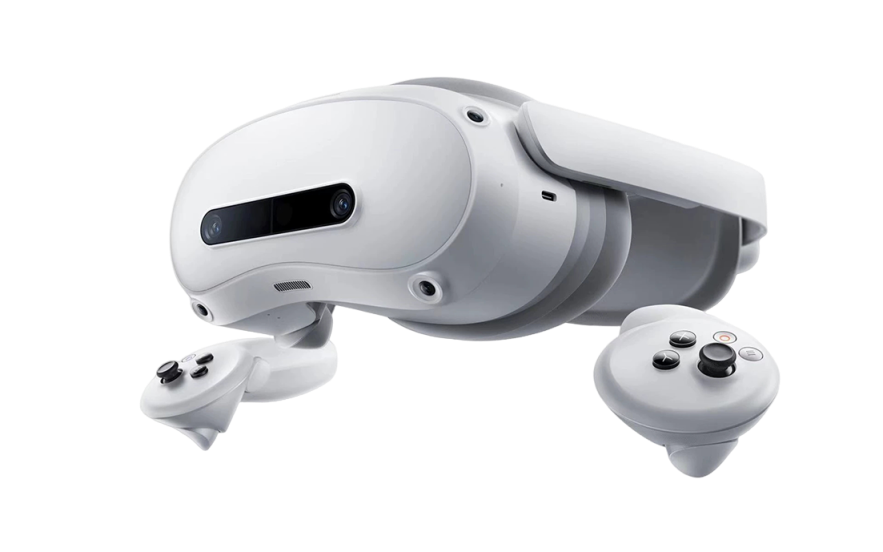
VR headset (PICO 4 Ultra Enterprise)

1

Hardware

Required

Robot connection, head control, binocular video display, etc.

Purchase the official AGIBOT teleoperation kit

VR controllers

2

Hardware

Required

Arm posture mapping, button operation, movement control, etc.

Waist motion tracker

1

Hardware

Required

Waist posture mapping

Leg motion trackers

2/4

Hardware

Required

Leg posture mapping

GenieLink

/

Software

Required

Teleoperation control software installed on the VR headset; the software platform for controlling the robot via VR

Network

Wireless router

1

Hardware

Required

Communication between the robot and VR devices

Purchase separately; parameter requirements are available from AGIBOT after-sales

5.9.3 Network Deployment

• No video transmission mode

Complete the installation and power supply of the wireless router and connect it to the upstream switch; configure wireless parameters (SSID, band, channel, bandwidth, etc.) according to the site environment to establish a dedicated wireless network for robot teleoperation. Connect the robot and the VR devices to the same LAN.

5.9.4 Robot Deployment

5.9.4.1 Connecting the Robot to the Network

On the [Settings] → [Network] page of AimMaster, connect the robot to the deployed Wi-Fi network.

图片99.png 

5.9.4.2 Enabling the [Teleoperation] Function

• On the AimMaster home page, confirm that the robot is in the motion state.

图片100.png 

• On the [Operation] page of AimMaster, enter the [Teleoperation] function.

图片101.png 

5.9.4.3 Configuring the Connection Method

1. Step 1: On the [Teleoperation] page, tap Settings to enter the [Settings] page.

图片102.png 

2. Step 2: On the [Settings] → [Teleoperation Settings] page, select the no-video-transmission mode (default; the video-transmission mode is not yet available). The no-video-transmission mode has only one connection method, so no selection is needed, and no connection credentials need to be entered manually.

图片103.png 

5.9.5 VR Device Deployment

PICO basics:

• Move the controller to move the cursor

• The trigger button on the controller is the confirm button

• Press and hold the Home button on the VR controller to move the view window to the position the controller points to

5.9.5.1 Device Description


VR devices (3-tracker solution)


图片104.png 

Equipment list

VR headset x1, controllers x2, waist motion tracker x1, leg motion trackers x2

Video display

VR headset

Head control

VR headset

Arm control

VR controllers

Waist control

Motion tracker

Leg/foot control

Motion trackers

Hand control

Specific gestures: VR controllers

Remote-controlled movement

VR controller sticks

5.9.5.2 Device Connection and Wearing

Note:

• Make sure the motion trackers are strapped tightly to the body to prevent shifting or falling off during movement (severe shifting or falling off may cause the robot to fall)

• Make sure the VR headset is worn correctly on the head

• Make sure the operator's clothing or other objects do not block the trackers; otherwise tracking performance will be affected

• After putting on the motion trackers, make sure the tracker indicator lights point vertically upward when standing upright

• Calibration may not be possible in direct sunlight; calibrate indoors or in the shade

Procedure:

1. Connecting the controllers to the VR headset: To connect new controllers, go to [Settings] → [Controllers] on the headset and tap [Pair]; press and hold the Home button and trigger button on the controller until the status indicator flashes alternately red and blue, then release and follow the on-screen instructions.

2. Wearing the VR headset: 1) Lift the rear head pad, put the headset close to your eyes, and adjust it so the view is unobstructed and the image is clear; 2) Once it fits comfortably, fasten the rear head pad and tighten the knob at the back of the head; 3) Fine-tune the top strap so it bears some load to reduce pressure on the forehead.

3. Wearing, pairing, and calibrating the motion trackers: 1) Press the tracker power button for 2 s to turn it on; 2) Wear it on the corresponding positions (ankles, waist, etc.); 3) Open the "Motion Tracker" app in the VR headset and tap [Start Pairing] to complete pairing; 4) Tap [Start Calibration], select the wearing mode, and follow the instructions to complete calibration.

Reference Documents:

• pico4-ultra-user-guide-cn.pdf

• pico4-ultra-user-guide-cn.pdf

Motion tracker calibration checklist:

• Confirm that the avatar's posture is normal

• Confirm that the avatar's feet are properly in contact with the ground

• When standing upright, confirm that the avatar is also basically upright

• Confirm that the body shows no obvious tilting, drifting, sinking, or floating

5.9.5.3 Setting the Safety Boundary

After turning off the "Permanent safety protection switch", the operator's range of movement is no longer restricted, but the operator must pay attention to environmental safety while moving.

On the [Settings] → [Developer Options] page, turn off the "Permanent safety protection switch".

5.9.5.4 Connecting the Device to the Network

Connect to a stable network under [Settings] → [Wi-Fi].

5.9.5.5 Connecting to the Robot

1. Step 1: Open the installed GenieLink app from the VR headset's app list.

2. Step 2: On the settings page, select the connection method and enter the corresponding credentials; select "No video transmission" → "Wireless connection".

3. Step 3: Follow the connection method configured in AimMaster to connect to the target robot.

4. Step 4: Tap "Confirm" on the "Safety boundary disabled" pop-up.

5. Step 5: Once connected, "Connected" is displayed and the app switches to the operation page.

5.9.6 Operation Guide

Note:

• Before operating the robot, make sure the motion trackers have been calibrated

• Before operating the robot, make sure posture calibration has been completed

• Before operating the robot, make sure the complete human skeleton attached to the operator is visible in the VR headset

• During teleoperation, do not move or remove the VR headset or motion trackers

• After pausing teleoperation, the VR headset can be removed temporarily, but after putting it back on, the motion trackers must be recalibrated and posture calibration must be performed again

5.9.6.1 Overall Workflow

图片105.png 

5.9.6.2 Global VR Controller Button Mapping

Operation

Buttons

Description

Posture calibration

X + Y + A + B (pressed simultaneously)

The operator must stand upright, face forward, and let both hands hang naturally

Start / pause teleoperation

Press / release the grip button

When teleoperation starts, the robot's upper body follows the operator's posture; when paused, the robot's upper body holds a stable fixed posture

• Absolute arm control: press left + right grip buttons simultaneously to start; release either grip button to pause

• Relative arm control: the left/right grip button independently controls the left/right arm

Switch absolute / relative arm mode

Short press the left stick

• Absolute arm mode: the robot's arms follow the operator's arm position and posture in real time for intuitive, synchronized motion mapping

• Relative arm mode: based on the robot's current arm posture, the robot's arms move incrementally according to the operator's relative motion — suitable for fine adjustment and continuous operation

Dual-arm reset

Double-press X

Resets both robot arms to the initial state

Full-body reset

Long-press X

Resets the whole robot to the initial state

Damped emergency stop

Short-press left stick + right stick

In any mode, puts the robot into the damped emergency-stop state

Switch from damped to passive

Short-press left stick + right stick

After a damped emergency stop, switches the robot to the passive state with all limbs disabled

Lie down

Short-press X + Y + right stick

In normal walking mode, it makes the robot lie down

Stand up

Short-press X + Y + right stick

When the robot is lying down / in passive state, makes the robot stand up again and enter normal walking mode

图片106.png 

5.9.6.3 Posture Calibration

Note: Posture calibration is a mandatory step before starting operation. It establishes the posture correspondence between the operator and the robot; otherwise motion mapping will be inaccurate, and in severe cases the robot may fall.

• Step 1: The operator stands upright, faces forward, and lets both hands hang naturally at the sides of the body

• Step 2: Press X + Y + A + B on the VR controllers simultaneously; a pop-up in the VR headset indicates "Calibration started"

• Step 3: Calibration succeeds when the VR headset shows "Calibration complete" and the [Calibration Status] field in AimMaster shows "Calibrated"

5.9.6.4 Pausing / Resuming Teleoperation

Note: After pausing teleoperation, the left and right sticks can still control leg movements — be careful not to touch the controller accidentally.

• Pause:

○ Absolute arm control: release either grip button

○ Relative arm control: release both the left and right grip buttons

• Resume:

○ Absolute arm control: press the left + right grip buttons simultaneously

○ Relative arm control: press the left/right grip button

• Operating restrictions while paused: When buttons or sticks are operated in the paused state, a VR pop-up indicates "Teleoperation is paused; the robot cannot be controlled"

• Catch-up after resuming: After resuming teleoperation, the robot smoothly converges to the current operating posture (absolute arm control)

5.9.6.5 Arm Control Modes

A short press of the left stick switches between absolute arm control and relative arm control; a pop-up in the VR headset confirms the switch.

Mode

Switch Method

Description

Note

Absolute arm mode

Short-press the left stick

The robot's arms follow the operator's arm position and posture in real time for intuitive, synchronized motion mapping

Default

Relative arm mode

Short-press the left stick

Based on the robot's current arm posture, the robot's arms move incrementally according to the operator's relative motion — suitable for fine adjustment and continuous operation


5.9.6.6 Teleoperation Modes

• Teleoperation mode

Mode

Switch Method

Description

Standing teleoperation mode

Release the left stick;

 do not push the right stick left or right

The robot keeps a standing posture while the upper body follows the operator's motions; the right stick controls squatting / standing up

Walking teleoperation mode

Push the left stick in any direction;

push the right stick left or right

The sticks control the robot's movement, turning, squatting / standing up, while the upper body follows the operator's motions

• Lower-limb movement controls

Action

Operation

Move forward / backward

Push the left stick forward / pull it back

Move left / right

Push the left stick left / right

Turn left / right

Push the right stick left / right

Stand up / squat down

Push the right stick forward / pull it back

• End-effector controls

Category

Action

Operation

Description

Gripper

Grip

Press the trigger button


Open

Release the trigger button


Dexterous hand


Initial gesture

Release the trigger button


Final gesture

Press the trigger button


Switch left-hand gesture


Y button + left trigger button

Cycles through the three gesture types below:

• "Five-finger closed grip"

图片107.png 

• "Three-finger tucked grip"

 图片108.png

• "Three-finger straight pinch"

图片109.png

Switch right-hand gesture

B button + right trigger button

Switch left/right-hand thumb

DOF 1

Long-press Y / B

图片110.png 

Switch left/right-hand thumb

DOF 2

Short-press Y / B

图片111.png 

5.9.6.7 Reset

While teleoperation is paused, the robot can be reset in the following ways:

Reset Method

Operation

Description

Dual-arm reset

Double-press X

Resets both robot arms to the initial state

Full-body reset

Long-press X

Resets the whole robot to the initial state

Stop reset

Double-press X

If an unexpected situation occurs during reset, the reset motion can be stopped manually

5.9.6.8 Emergency Stop

The operator must know and be proficient in pressing the left/right sticks simultaneously (VR controllers) to trigger a damped emergency stop.

• In an emergency, press the left and right sticks simultaneously to trigger a damped emergency stop; the robot immediately enters a safe damped state

• After a damped emergency stop, pressing the left and right sticks simultaneously again switches the robot to the passive state, in which the robot's posture can be adjusted freely

5.9.6.9 Lie Down

Press X + Y + right stick simultaneously to make the robot lie down. After lying down is complete, the robot automatically switches to the passive state.

5.9.6.10 Stand Up

In the passive state, press X + Y + right stick simultaneously to make the robot stand up again. After standing up is complete, teleoperation can continue.

5.9.7 Exiting the Function

1. Step 1: Pause teleoperation and confirm that the robot is standing stably

2. Step 2: Single-press the Home button on the controller, and tap Exit on the exit confirmation pop-up

3. Step 3: Tap Back on the function home page of AimMaster to exit

图片112.png 

5.9.8 Exception Alarms

Abnormal State

VR On-Screen Message

System Response

Recommended Operator Action

A severe fault that may cause the robot to fall

"The robot is at risk of falling; operation interrupted"

Interrupt the function

Exit teleoperation immediately, lift the robot up, and check the robot's condition

A fault affecting robot operation

"Robot abnormal; operation interrupted"

Interrupt the function

Exit teleoperation immediately and check the robot's condition

A fault whose operating conditions will gradually worsen

"The robot is at risk; please check after use"

-

May continue, but keep monitoring whether the robot's condition worsens

Network latency of 200–1000 ms

"High network latency; operation slowed down"

Robot motions slowed down

Pausing teleoperation and checking the network is recommended

Network latency greater than 1000 ms

"High network latency; operation interrupted"

Interrupt the function

Exit teleoperation immediately and check the network


5.10 Data Collection

Data collection refers to recording the robot's motion data and sensor data during operation through teleoperation and other means. Once sufficient high-quality real-robot data has been collected, it can be used to train the robot's AI models, enabling the robot to perform tasks autonomously.

Detailed documentation:

AGIBOT A3 Ultra Data Collection User Manual V3.2


5.11 Fleet Control

5.11.1 How to Obtain

Please contact after-sales personnel to obtain the "Fleet Control software package".

5.11.2 Project Management

Each project is a separate engineering file. After creation, it can be shared among multiple people through export and import.

• Create New Project: Tap the Create New Project button to create a new project.

• Export: Tap the Export button in the top-right corner, select the file to export and name it, to generate a .gcs file.

• Import: Tap [Import Existing Project] and select a .gcs file to quickly open an exported project.

• View Project History: Displays previously edited projects; tap to open a project.

• Delete Project History.

Note: Due to the refactoring of the software interface, projects from historical versions (before v1.2) can no longer be opened.

5.11.3 Robot Management

• Add Robot: Tap the [Add Robot] button and fill in the relevant information according to the input box prompts. Multiple robots can be added at once, in the format: "A3 @ Robot Nickname @ IP".

Robot status:

1. Robot nickname (the name given when adding the robot)

2. The robot’s current Action

3. The task the robot is currently executing (this task is a multi-robot control task)

4. Robot status (latency with the current computer, manual/automatic state, emergency stop state, Wi-Fi signal, battery information, etc.)

5. The correction effect after time synchronization

6. The reconnect button, etc.

• Function Buttons: The checkbox at the front of the card has two states, selected or unselected; this box affects the scope of functions such as deletion, time synchronization, and resource synchronization. To quickly select only one robot and set all other robots to unselected, double-click that robot’s card.

• Time Synchronization: Using this function calculates the time difference interval of the selected robots and caches this data.

Note: When you need to control multiple robots for synchronized operation, be sure to tap Time Synchronization in advance; it can be performed multiple times.

5.11.4 Menu Bar

Tap the top-left corner to show the menu bar.

• "Skip Startup Status": Only supported on A2.

• "Execute After": Sets the preparation time before a task is executed (when the network condition is poor, a longer preparation time can be set to ensure that the robots execute commands simultaneously).

• "Close Project": Ends the current project and returns to the home page.

5.11.5 Audio

Tap [Import Audio].

• Local Audio: Select and upload a file. The program will automatically convert it to a format supported by the robot. The name of the selected audio file is filled in by default during import and can be changed; when files have duplicate names, the new resource will overwrite the existing audio resource.

• Text-to-Speech (TTS): Enter text and call the TTS service (ensure network connectivity) to generate audio; the audio must be named manually.

• Tap [Sync Audio Resources to Robots] to sync all audio resources to the robots, with the robot scope being the robots selected previously.

Note: Synchronization is required each time after adding audio resources.

5.11.6 Automatic Tasks

❗ Before starting control with Multi-Robot Control, ensure the robots are idle (not walking, performing actions, dancing, etc.).

If abnormal operation occurs, restart the software; data will not be lost.

5.11.6.1 Roles

• Roles can be created using the [Add Role] button on the left side of the timeline. Each role generates one task track.

Role card functions:

1. Tap the [Selection Box] to adjust which robots are bound to this role, within the scope of the preceding robot list.

2. Press and hold the card to drag it and adjust the order of the roles up and down.

3. Tap the [Delete] icon to delete a role and all its associated content, without affecting the robot itself.

4. Tap the [Copy] icon to copy this role’s tasks to other roles.

5. Tap the [Hide] icon (a special state) to temporarily hide a role; when a task is issued, this role will not participate in execution.

5.11.6.2 Task Orchestration

Each role has its own timeline, and each role can run five types of task commands simultaneously:

1. Audio: Audio created in audio management; its duration is fixed to the audio length. Audio tasks can overlap, and the later overlapping audio task interrupts the playback of the previous one, but two audio tasks cannot be created to start at the same time.

2. Expression: A task from the robot’s expression list; the expression plays in a loop until the next expression task starts.

3. Action: A task from the robot’s action/dance list; the action duration is the action’s fixed length. Tasks can overlap, and the later overlapping action task interrupts the playback of the previous one, but two action tasks cannot be created to start at the same time.

4. Movement: Properties such as walking speed, turning, and time of the task can be set.

5. Status: Currently supports Action switching, volume setting, and microphone on/off.

5.11.6.3 Create / Edit Tasks

• Right-click a task to show the Edit, Copy, and Delete buttons:

• Edit: Tap to bring up the edit dialog to modify task information.

• Copy: Copies the task information.

• Delete: Deletes the task (after selecting the command, pressing the keyboard Delete key also deletes it).

• Right-click a blank area to show the Create and Paste buttons:

• Create: Tap to bring up the create dialog to quickly create task information.

• Paste: Tap to quickly create a task by pasting the copied task.

5.11.6.4 Execute / Cancel Tasks

• Tap [Execute Task] in the top-right corner and confirm.

• The task delivery progress and execution countdown are shown; to cancel a task, tap the [End] button in the top-right corner before the execution countdown ends.

• Stage Preview.


6. Accessories Management and Usage


6.1 4G/5G Module User Guide

Robots are equipped with built-in eSIM cards. For details on the specific configuration and warranty services, please refer to Section 8.1 of this document.

6.1.1 eSIM Usage Instructions

• Communication standard: Supports 5G/4G.

• Plan: 100 GB of data per month. Once the data is used up, mobile network service stops; to continue using it, contact AGIBOT after-sales to purchase a data add-on package.

• Free period: Up to 1 year. To continue using it after expiry, contact AGIBOT after-sales to renew.

• Activation: Automatically activated after the device powers on.

• Network usage: The eSIM is enabled by default. When the device connects to Wi-Fi, the Wi-Fi network is used preferentially; when Wi-Fi disconnects, the mobile network is used automatically.

6.1.2 SIM Card Specifications

The A3 Ultra supports Micro-SIM cards for internet access. Its cellular communication module is compatible with 4G/5G protocols, and supports carriers including China Mobile, China Unicom, and China Telecom.

6.1.3 SIM Card Purchase

Because some functions of the A3 Ultra require access to AGIBOT’s servers, whitelist configuration is required, and a dedicated enterprise IoT card must be purchased from an AGIBOT partner. The advantage of an enterprise IoT card is that no personal real-name verification is required—only the business license and the front and back of the legal representative’s ID are needed. In addition, it supports a unified card management platform that can monitor in real time the card’s order and delivery status, data usage, balance and renewal, etc.

6.1.4 SIM Card Insertion

Flip the head upward and insert the SIM card into the corresponding slot from the neck of the robot.

图片113.png 


7. Daily Maintenance and Management

1. Safety Warnings

• a. Power-off Maintenance: Before any maintenance or component replacement, completely power off the device and confirm it is in a fully de-energized safe state.

• b. No Unauthorized Modification: Do not modify the robot or alter its original design and configuration without authorization.

• c. Professional Repair Only: Do not disassemble the robot personally. If maintenance is required, contact the manufacturer’s designated professional service personnel.

2. Maintenance and Upkeep

• a. Routine Maintenance: Perform regular maintenance in accordance with the manufacturer’s (AGIBOT) recommendations to keep the robot in optimal operating condition.

• b. Use Original Spare Parts: Only use manufacturer-specified original spare parts for component replacement to guarantee equipment performance and operational safety.

3. Fault Handling

• a. Fault Response: Immediately stop operation once any malfunction occurs during operation, and notify professional technicians to conduct inspection and repair.

• b. No Unauthorized Disassembly & Repair: Do not disassemble or attempt to repair the robot by yourself, so as to prevent further damage.

4. Battery and Power Management

• a. Safe Charging: Do not disassemble the battery for separate charging; charge only by connecting the power supply.

• b. Charging Environment: The robot’s battery shall be charged in a safe, dry environment. Avoid humid and high-temperature surroundings.

• c. Prevent Overcharging: Do not keep the device connected to power for a prolonged period to avoid battery overcharging and overheating, and to prolong battery service life.

• d. Battery Replacement: Battery replacement must be performed only by qualified professionals. Using a charger for one battery type on another may cause fire hazards.

• e. Dedicated Power Supply Only: Use only the supplied removable power supply unit for charging.

• f. Battery Disposal: Remove the battery and dispose of it in accordance with safety regulations before scrapping the device.

5. Software Management

• a. Regular Updates: Regularly check and update the robot’s operating system and control software to fix vulnerabilities and enhance security.

Note: Compliance with the above instructions ensures safe and efficient operation of the robot. For any inquiries, please contact the manufacturer or authorized service provider for support.


8. After-sales Service Policy


8.1 Warranty Content

For details of the warranty content, please refer to https://www.agibot.com/filepage/292.html

1792747770555486.png 


8.2 AimMaster Privacy Policy

Welcome to AimMaster. AimMaster and its related services (the "Products and Services") are developed and operated by Shanghai Zhiyuan Xinchuang Technology Co., Ltd. ("we" or "us"). We fully understand the importance of protecting the personal information and privacy of users ("you"). This Privacy Policy ("this Policy") sets out the rules governing how we collect, use, store, and protect your personal information when you access and use our Products and Services.

Please read this Policy carefully and make sure you fully understand all of its rules and key points (especially those presented in bold) before using our Products and Services. If you do not agree with this Policy or any of its terms, you should stop using our Products and Services. Once you choose to use them, you are deemed to have fully read and agreed to all contents of this Policy.

This policy helps you understand:

a. How we collect and use your personal information

b. How we share, transfer, and disclose your personal information

c. How we use cookies and similar technologies

d. How we store your personal information

e. How we protect your personal information

f. How we protect the personal information of minors

g. Your rights

h. How this Policy is updated

i. Contact us

1. How we collect and use your personal information:

In accordance with applicable laws and regulations, and strictly following the principles of legitimacy, lawfulness, and necessity, we collect and use the personal information you actively provide or that is generated when you use our Products and Services, in order to provide you with better products and services.

a. When you register for or log in to an account, we collect the username, phone number, and other information you provide, and may verify your identity via SMS or email.

b. When necessary, we verify your true identity to comply with laws, regulations, and regulatory requirements and to ensure user security.

c. When you contact us, we save your call records, call content, or contact information so that we can reach you, resolve issues, and record the handling plan and results.

2. How we share, transfer, and disclose your personal information:

Circumstances requiring your prior authorization or consent — we may share, transfer, or disclose your personal information to third parties in the following circumstances:

a. As provided in this Policy or upon your explicit consent or authorization;

b. As required by applicable laws and regulations, legal procedures, or mandatory administrative or judicial requirements;

c. To the extent permitted by laws and regulations, to protect the interests, property, or safety of us, our affiliates, you, other users, or the public from harm;

d. To implement functions related to the Products and Services or to provide the services you request;

e. For use in academic research;

f. Where you have violated this Policy and we provide information to third parties for the purpose of protecting our rights.

Circumstances not requiring your prior authorization or consent — we may share, transfer, or publicly disclose your personal information without your prior authorization or consent in the following circumstances:

a. Where necessary to perform statutory duties or obligations, such as duties or obligations directly related to national security, defense security, criminal investigation, prosecution, trial, and execution of judgments;

b. Where it is necessary to protect the vital interests of life or property of you or other individuals but it is difficult to obtain your consent;

c. Personal information that you have voluntarily disclosed to the public;

d. Personal information collected from lawfully public information, such as lawful news reports or government information disclosure;

e. Where necessary to conclude and perform a contract at your request;

f. Where necessary to maintain the safe and stable operation of the Products or Services, such as discovering and handling faults;

g. Personal information that has been technically processed so that the recipient cannot re-identify a specific individual and cannot restore it; or personal information that we have de-identified in order to improve products and services;

h. Other circumstances stipulated by laws and regulations.

3. How we use cookies and similar technologies:

Cookies and similar technologies are common technologies used on the Internet. When you access our Products and Services, we may use such technologies to send one or more Cookies or anonymous identifiers to your device to collect and store information about your access to and use of our Products and Services. They will not be used for any purpose other than those described in this Policy, mainly to achieve the following functions:

a. Ensuring the secure and efficient operation of the Products and Services: setting authentication and security Cookies or anonymous identifiers to confirm whether you are safely logged in, to distinguish whether you have encountered account theft, fraud, or other unlawful acts, and to improve service efficiency and login and response speed;

b. Helping you enjoy easier access: eliminating the need to repeatedly fill in personal information or enter search content;

c. Clearing Cookies: most browsers provide the function of clearing cached data; you can clear Cookies in your browser settings, but after clearing, functions or services that rely on Cookies may become unavailable.

4. How we store your personal information:

a. In accordance with laws and regulations, we store the personal information collected and generated during operation within the People's Republic of China. At present, such information will not be transferred overseas; if overseas transfer is required, we will follow relevant national regulations or seek your consent.

b. We retain your personal information only for as long as necessary to provide the Products and Services. Beyond the necessary period, your personal information will be deleted or anonymized, unless retention is extended based on your needs or as permitted or required by laws and regulations.

5. How we protect your personal information:

a. We attach great importance to the security of your personal information and will strive to take reasonable technical and administrative security measures to prevent your personal information from being improperly used or from being accessed, publicly disclosed, used, modified, damaged, lost, or leaked without authorization.

b. You should understand that although we have taken reasonable and effective measures and comply with the standards required by relevant laws, due to technical limitations and possible malicious means, the absolute security of information cannot always be guaranteed.

c. In the event of a user information security incident, we will, in accordance with laws and regulations, promptly inform you via push notifications, email, letters, SMS, or other means of the basic situation and possible impact of the incident, the measures taken or to be taken, suggestions for you to prevent and mitigate risks on your own, and remedial measures for you. Where it is difficult to notify each user individually, we will issue an announcement in a reasonable and effective manner. We will also report the handling of the incident to the relevant regulatory authorities as required.

6. How we protect the personal information of minors:

a. If you are a minor under the age of 18, you should read and agree to this Policy under the supervision and guidance of your parents or other guardians before using our Products and Services. If your guardian does not agree to your use of our Products and Services under this Policy or to your provision of personal information to us, please stop using our Products and Services immediately and notify us promptly to delete your personal information.

b. If you are the guardian of a minor and have questions about the processing of the minor's information under your guardianship, or if the minor under your guardianship uses our Products and Services or provides personal information without your consent, please contact us through the methods described in this Policy so that we can take appropriate measures.

7. Your rights:

We attach great importance to your management of personal information and do our utmost to protect your rights relating to your personal information:

a. Changing or withdrawing the scope of authorization: You can turn off relevant permissions in the product's operating system, change the scope of consent, or withdraw your authorization. After withdrawal, we will no longer collect information related to those permissions. Certain business functions and services require your information to complete; after you withdraw consent or authorization, we will be unable to continue providing the corresponding services and will no longer process your relevant personal information. However, your withdrawal does not affect the collection, processing, and use of information previously carried out based on your authorization.

b. Account cancellation: If you wish to cancel your account, please contact us through the methods described in this Policy, and we will process your request promptly. Before canceling your account, we may verify your identity, security status, device information, etc.; you agree to authorize and cooperate with our account cancellation process. After your account is canceled, we will delete or anonymize your personal information in accordance with this Policy, except as otherwise provided by laws and regulations.

c. Other rights related to personal information: If you believe that your personal information rights may have been infringed or wish to exercise other rights related to personal information, you may contact us through the methods described in this Policy, and we will respond promptly after receiving your request, except as otherwise provided by laws and regulations.

8. How this Policy is updated:

a. We have the right to modify, supplement, or update this Policy from time to time and publish it in an appropriate manner. For major changes, we will also provide more prominent notice (such as official announcements, push notifications, SMS, or email).

b. If you choose to continue using our Products and Services, you must re-agree to the revised contents of this Policy. Please pay attention to and stay informed about revisions; if you do not agree with the revised version, you should immediately stop using the Products and Services we provide.

c. Major changes referred to in this Policy include, but are not limited to:

▪ Major changes to our service model, such as the types, purposes, and methods of processing personal information;

▪ Changes to the main recipients of personal information sharing, transfer, or disclosure;

▪ Major changes to your rights regarding the processing of personal information and how to exercise them;

▪ Changes to the department responsible for personal information security, contact information, and complaint channels;

▪ When a personal information security impact assessment report indicates high risk.

9. Contact us:

If you have any questions, comments, or suggestions about this Policy, you can contact us in the following ways:

a. Send an email to: aimomp@agibot.com;

b. Mailing address: 7th Floor, Building E2, Caohejing Business Oasis, No. 2555 Xiupu Road, Pudong New District, Shanghai.

We will respond to your questions, comments, or suggestions promptly and help resolve your issues.